
Gallery
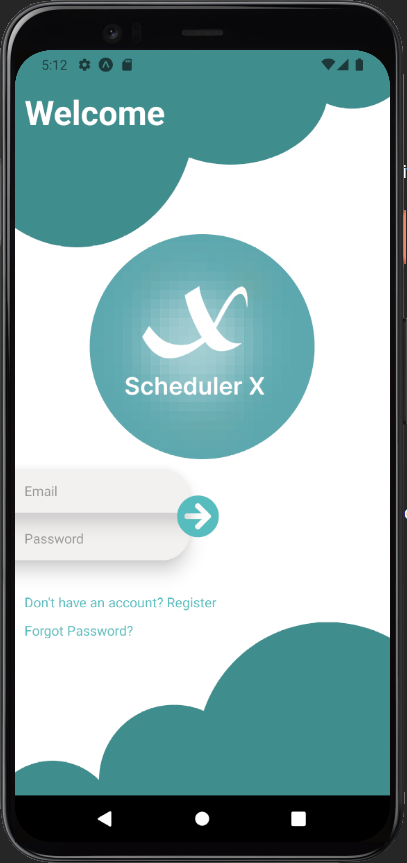
User can enter their username and password to navigate to the "Home" screen by pressing the "Login" button. User can also sign up for an account by pressing the "Sign Up" button which navigates them to the Sign Up screen.
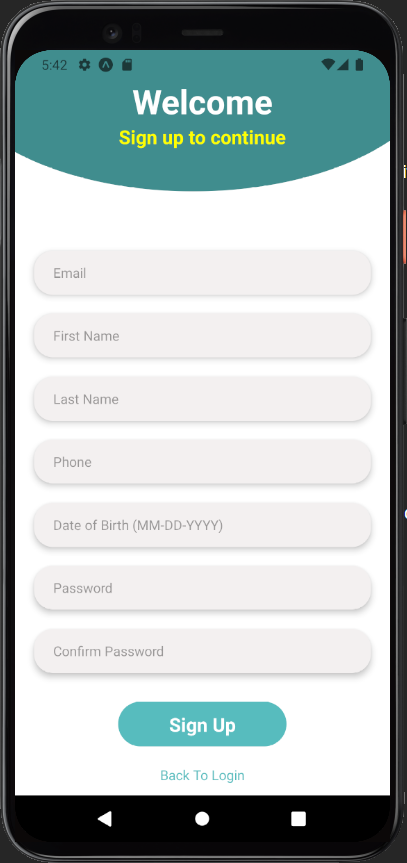
User enters their information and clicks the "Sign-up" button to register for an account. The user is then taken to the "Home" page. User can also navigate back to login screen with the "Back to Login" button if they already have an existing account.
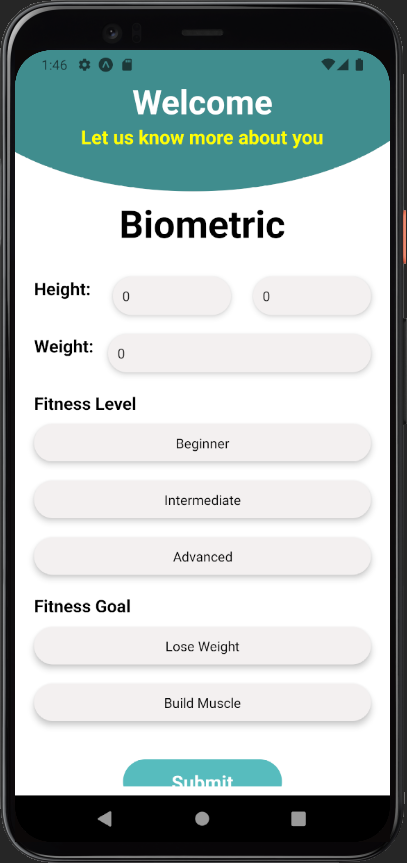
User will enter height, weight, fitness level, and fitness goal (can also skip for later). User can then submit and successfully create an account.
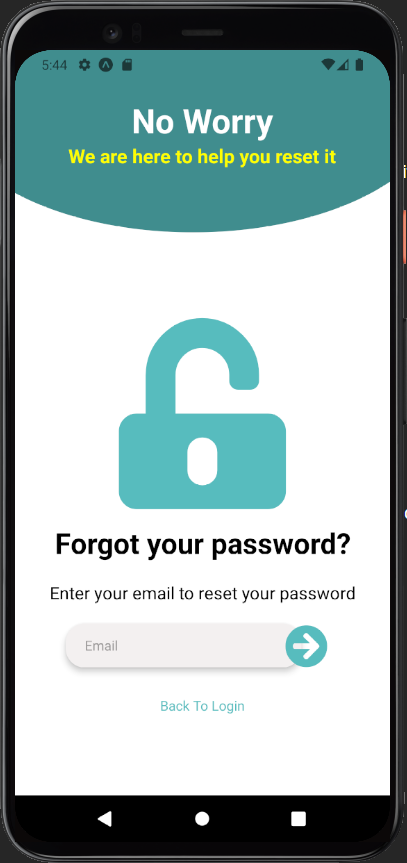
User will enter email and be given a link to reset password. User can also navigate back to login screen with the "Back to Login" button if they already have an existing account.
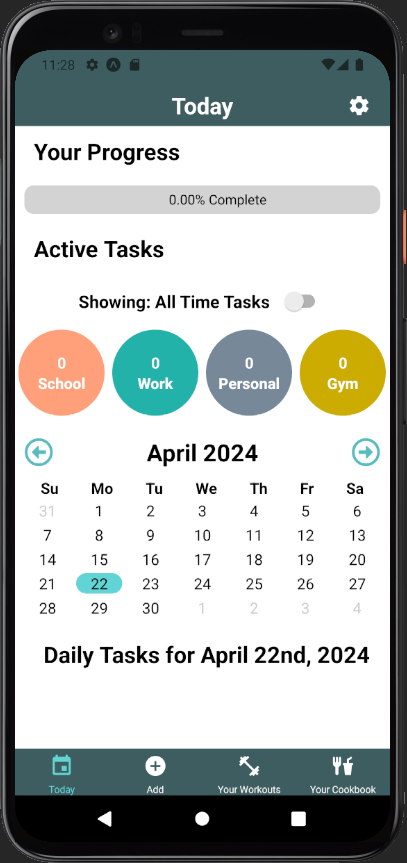
Home screen. User can see events they have for the current date. User can click on each event which navigates them to the "Edit Day" page. User can also click the calendar and the Current day is highlighted with a circle. User can also edit and delete and edit task and see how many active tasks are left
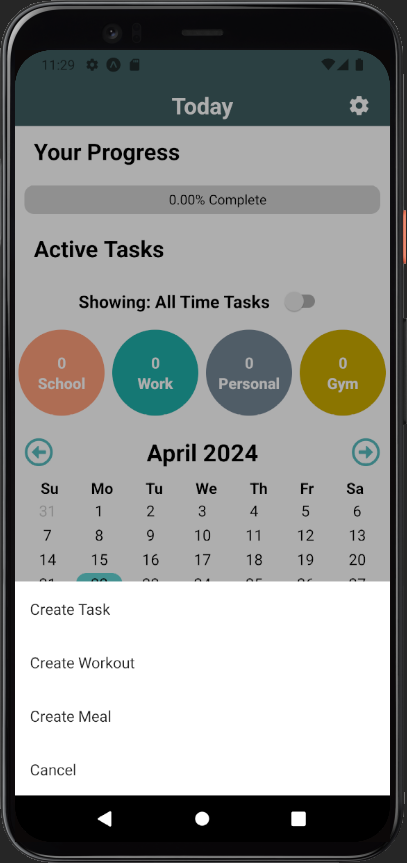
User is given the option to create either a task, meal, workout, or he can cancel.
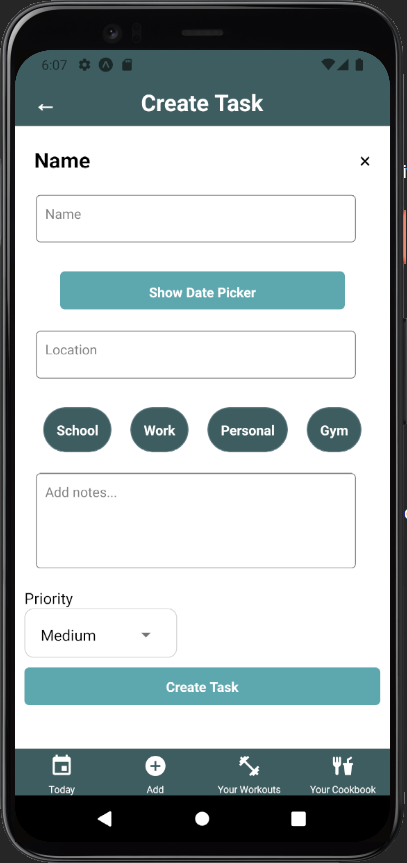
User can enter inputs for a task and he can either create or cancel the task
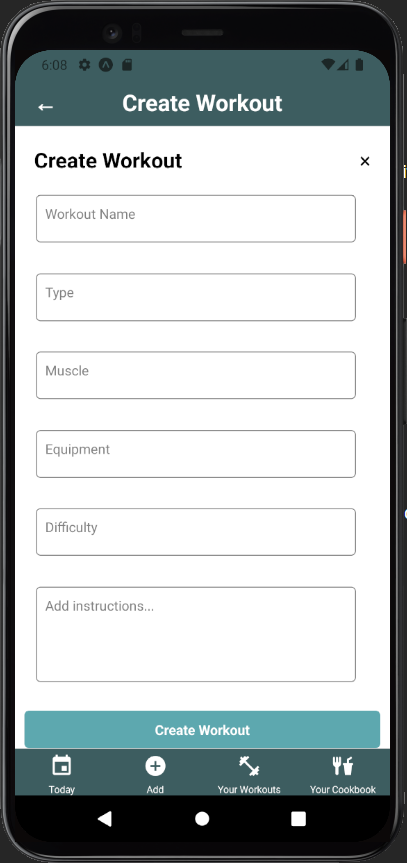
User can enter inputs for a Workout and he can either create or cancel the Workout
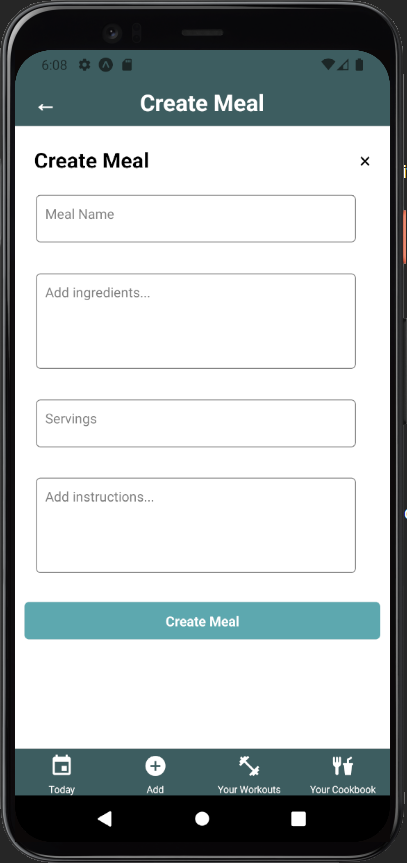
User can enter inputs for a Meal and he can either create or cancel the Meal
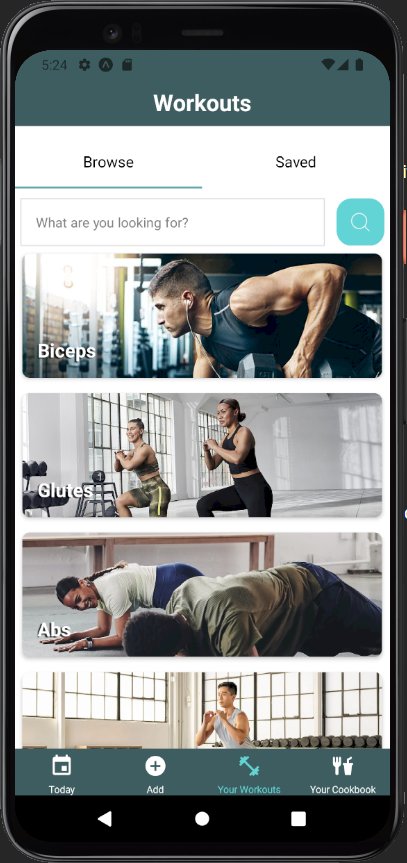
Users can utilize the screen to browse various workouts and click on them to access more information.
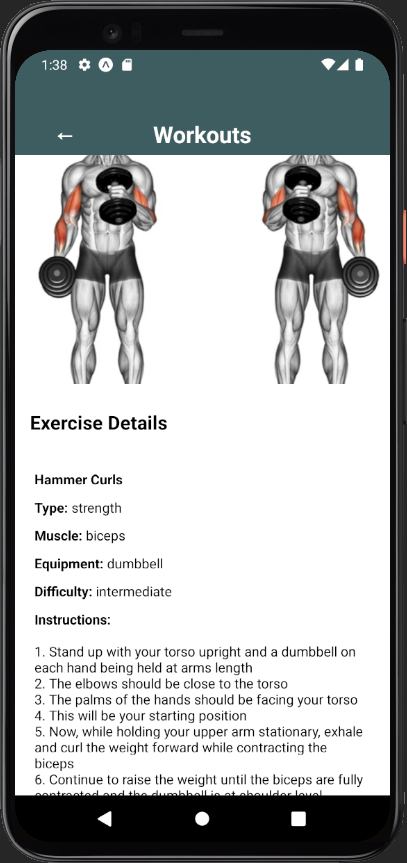
When the user clicks on a specific workout, they are presented with this screen containing details and the option to save it to their list of saved workouts.
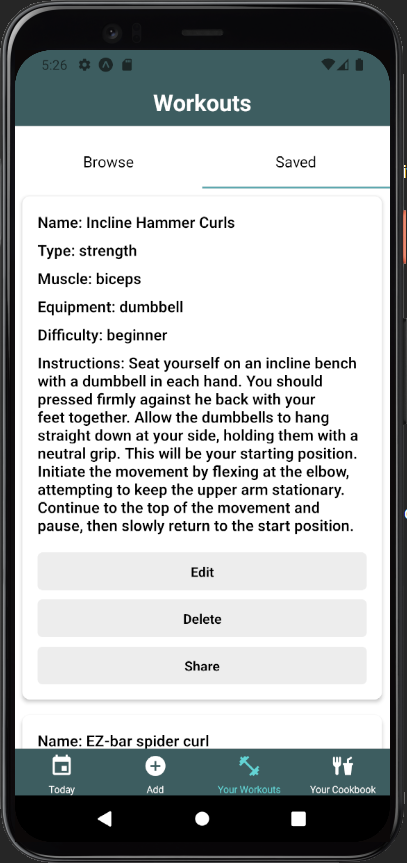
Users can browse through their saved workouts and can either edit, share, or delete them.
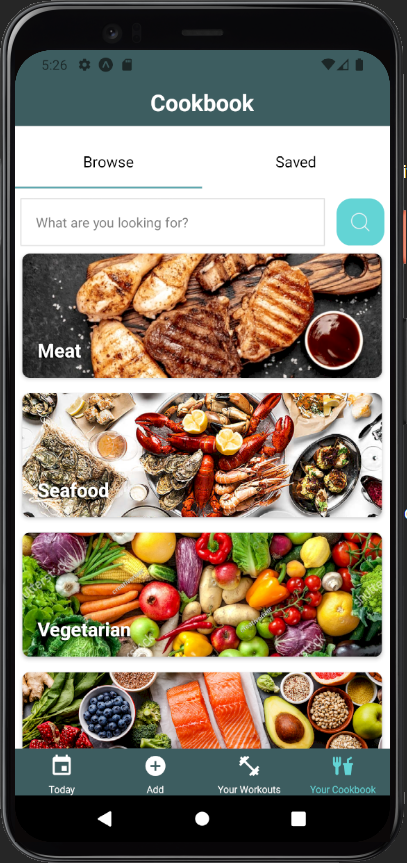
Users can utilize the screen to browse various meals and click on them to access more information.
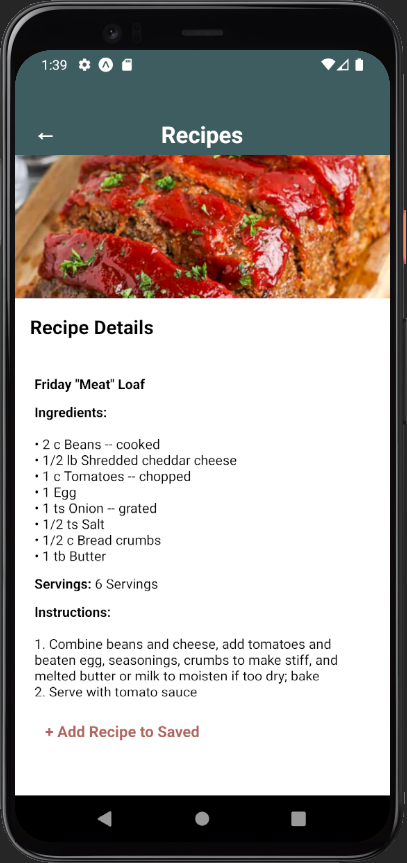
When the user clicks on a specific workout, they are presented with this screen containing details and the option to save it to their list of saved workouts.
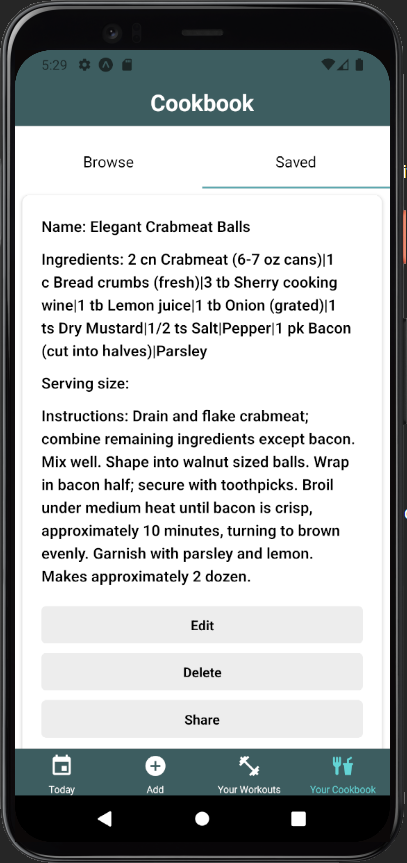
Users can browse through their saved Meals and can either edit, share, or delete them.
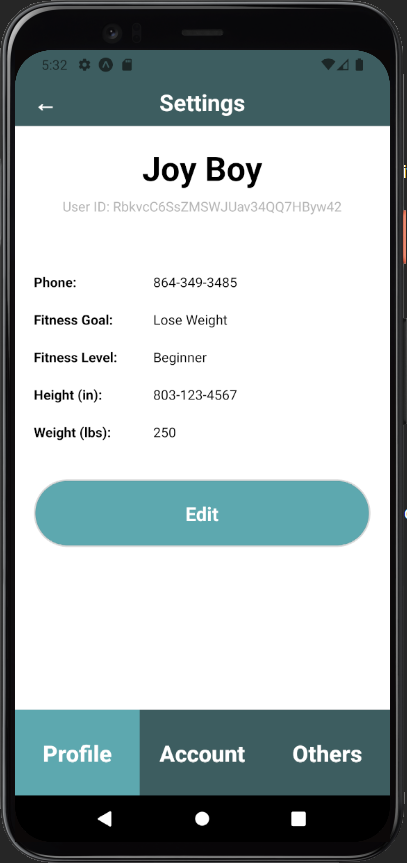
User can view and edit all the personal information entered when creating an account.
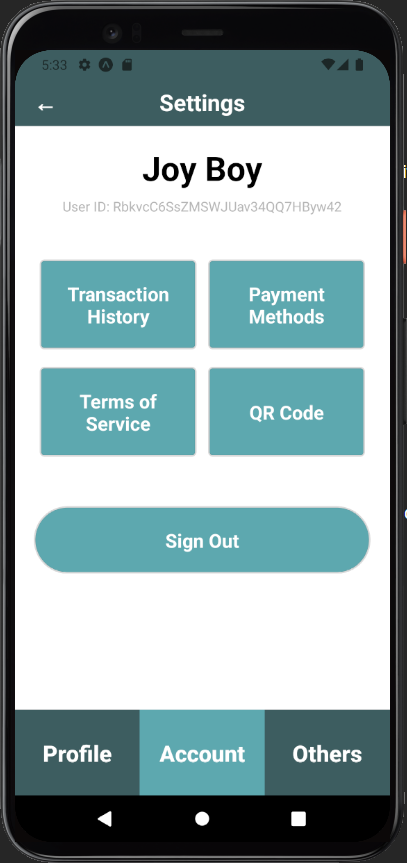
user can check payment methods, transaction history, terms of service, QR code, and sign out.
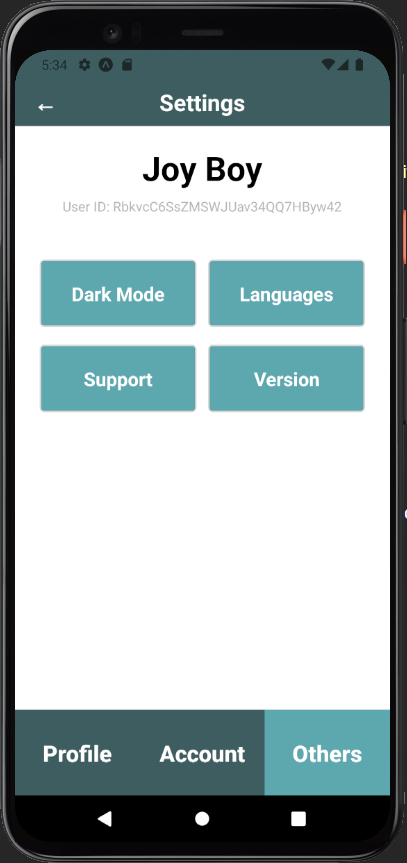
user can switch to dark mode, change the language, access support, and view the current version they have.